One of the fantastic ways Linux distributions distinguish themselves from mainstream operating systems is the ability to boot a Linux live environment from a USB memory stick. This option allows you to try out a Linux distribution without the need to first install Linux on your internal disk. However, there is an even simpler way to try out a Linux distribution, or even multiple, without installation: directly from your browser. In this short article, I will explain how you can try out multiple Linux distributions in your browser.
Content of the article
- Introduction
- What is DistroSea?
- Which Linux distros are available via DistroSea?
- How to use DistroSea?
- Final words
Introduction
One of the first things to do if you want to try out or install a Linux distribution on your machine is to create a bootable Linux memory stick. The nice thing about having this magical, fresh Linux bootable USB drive is that you can try Linux now on whatever desktop or laptop you want, without impacting the existing content on your internal storage device. The Linux environment that you start from your USB device is called a live environment. With this, you don’t need much to try a Linux distro without worrying about your current setup. But what if you want to try multiple Linux distros, but you don’t want to create multiple USB sticks with different Linux distros, or you don’t want to set up multiple Virtual Machines? Well, there is a really nice and convenient solution available via your web browser, which is called DistroSea.
What is DistroSea?
DistroSea.com is, in my opinion, a pretty nice service that lets you start within your browser and explore from there more than 80 Linux distributions, with more than 500 versions. No USB sticks required, no ISO downloads required, no installations required. On the website of DistroSea.com, you can simply select, click, launch, and start testing the distros. With DistroSea, it is simple for anyone to try out different Linux distros without impacting their current system. Whether you want to check out the latest releases or revisit some older versions, they are all available.
Once you pick a Linux distro and, if applicable, a specific version, DistroSea boots up a demo environment powered by noVNC. This web-based technology comes from ThinLinc, an enterprise-grade remote desktop solution that lets organizations run Linux desktops and apps centrally in the cloud or data center. In the case of distroSea, it streams the Linux desktop image to your browser.
Of course, it’s not all perfect, and in my opinion, that’s fair for a free service like this. Audio usually won’t work, and anything you do inside the session disappears once you close it. So no permanent file storage. But for testing, comparing distros, and just getting a feel for the different distros and desktop environments out there, it’s more than enough. You can even install applications inside the temporary environment, which makes the whole experience feel pretty close to the real thing.
Note: You need to sign in (with a Google account) in DistroSea to be able to use the internet inside the operating system tryout session, to browse the web, to use YouTube, to install apps via the Software application, etc.
Which Linux distros are available via DistroSea?
DistroSea offers a rather impressive list of distros to try in your browser. At the moment of writing, this is the list:
- AerynOS
- Alma Linux
- Alpine Linux
- AnduinOS
- Antix Linux
- Archcraft
- Arch Linux
- Arco Linux
- Artix Linux
- Bazzite
- Big Linux
- blendOS
- Bodhi Linux
- BunsenLabs Linux
- CachyOS
- CentOS Stream
- Chimera Linux
- Debian
- Deepin Linux
- Devuan Linux
- DragonFlyBSD
- Edubuntu
- elementary OS
- EndeavourOS
- Endless OS
- Fedora Linux
- FreeBSD
- Garuda Linux
- Gentoo Linux
- Haiku
- HoloISO
- KDE Neon
- KolibriOS
- Kubuntu
- Linux Lite
- Linux Mint
- Linux Mint Debian Edition
- Lubuntu
- Mageia
- Manjaro
- MX Linux
- Nitrux
- NixOS
- Nobara Linux
- OpenIndiana
- OpenMandriva
- openSUSE
- PCLinuxOS
- pearOS
- PeppermintOS
- PikaOS
- Pop!_OS
- Porteus Linux
- PrimTux
- Puppy Linux
- PureOS
- Q4OS
- ReactOS
- RebornOS
- Redox OS
- Rocky Linux
- Siduction Linux
- Slackware Linux
- Slax
- SliTaz
- Solus
- SparkyLinux
- SpiralLinux
- Tails
- Tiny Core Linux
- Trisquel GNU/Linux
- Tuxedo OS
- Ubuntu
- Ubuntu Budgie
- Ubuntu Cinnamon
- Ubuntu Kylin
- Ubuntu MATE
- Ubuntu Studio
- Ubuntu Unity
- VanillaOS
- Void Linux
- Voyager Live
- Xubuntu
- Zorin OS
How to use DistroSea?
First, go to the web page DistroSea.com.

Here you have the option to scroll through all available Linux distributions or filter by typing a name.
Now select a distribution that you like to try out and click on the tile.
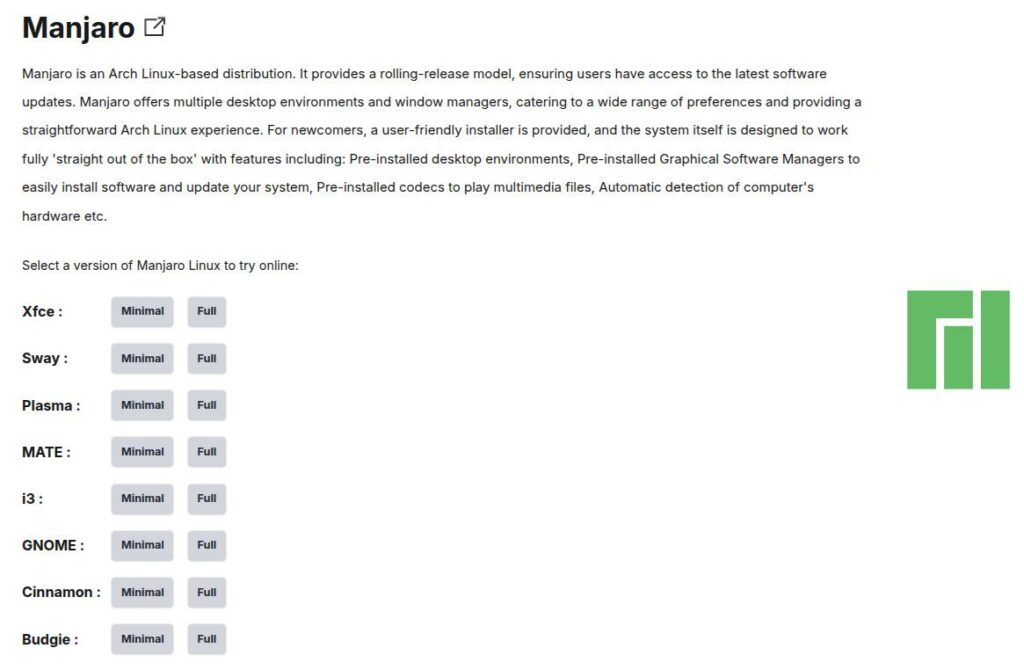
Here you see a short description of the selected distribution and, if applicable, the available (historical) versions.
Select a version.
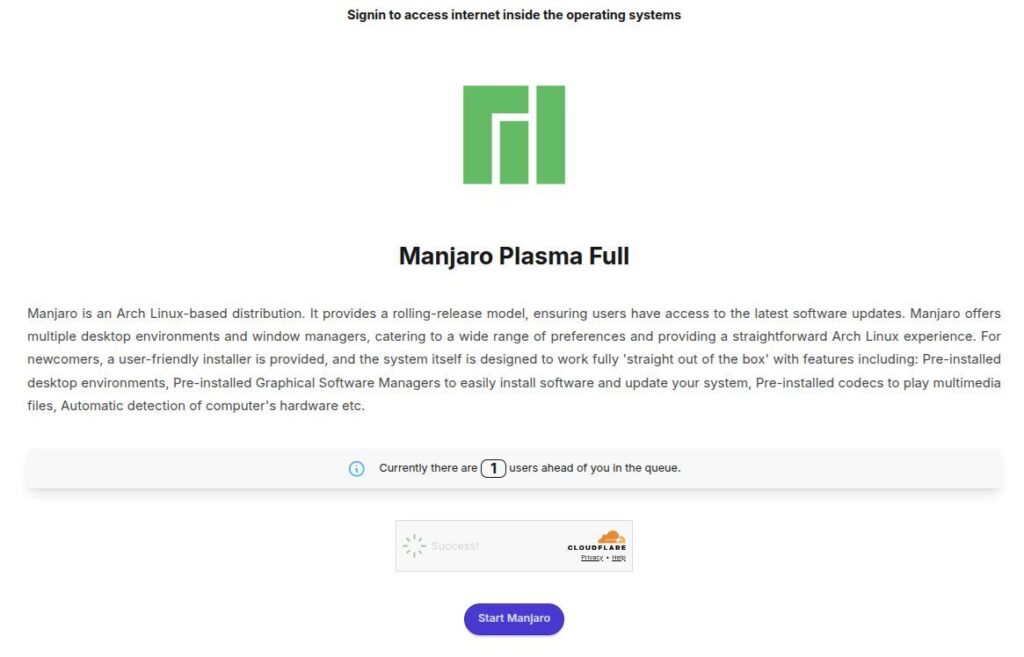
Notice the remark at the top, which indicates you need to sign in to be able to use the internet inside the operating system tryout session. It is up to you to decide if you want to log in (via your Google account).
You also see how many users are in the queue before yours is ready to start. When you click the Start button, you go to the next screen in which you need to click Continue.

When you click the Continue button, your test environment will be created.
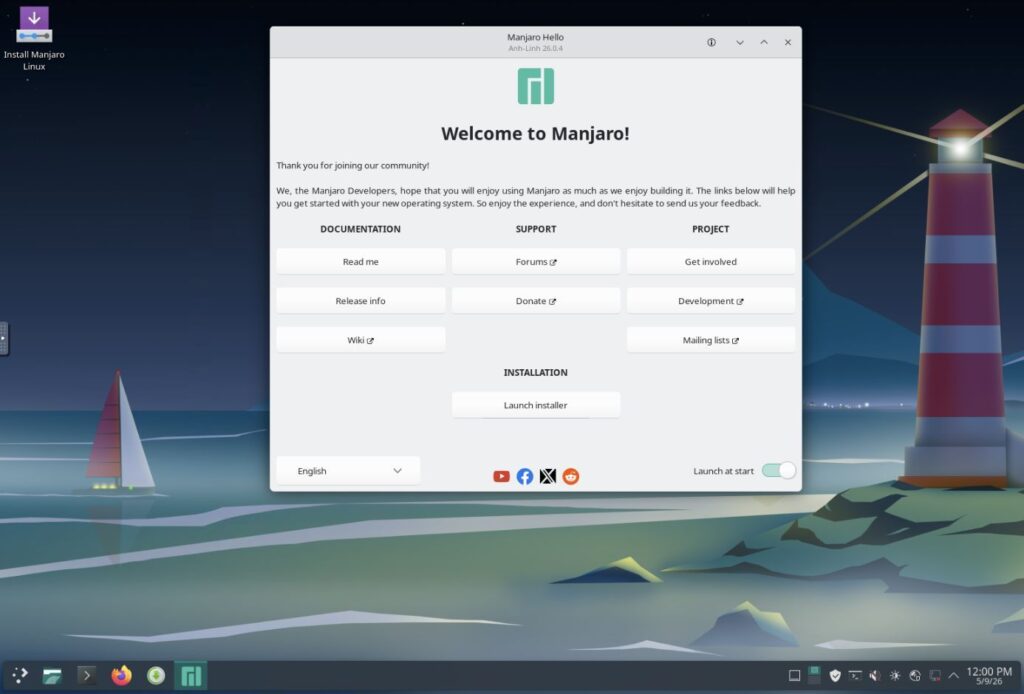
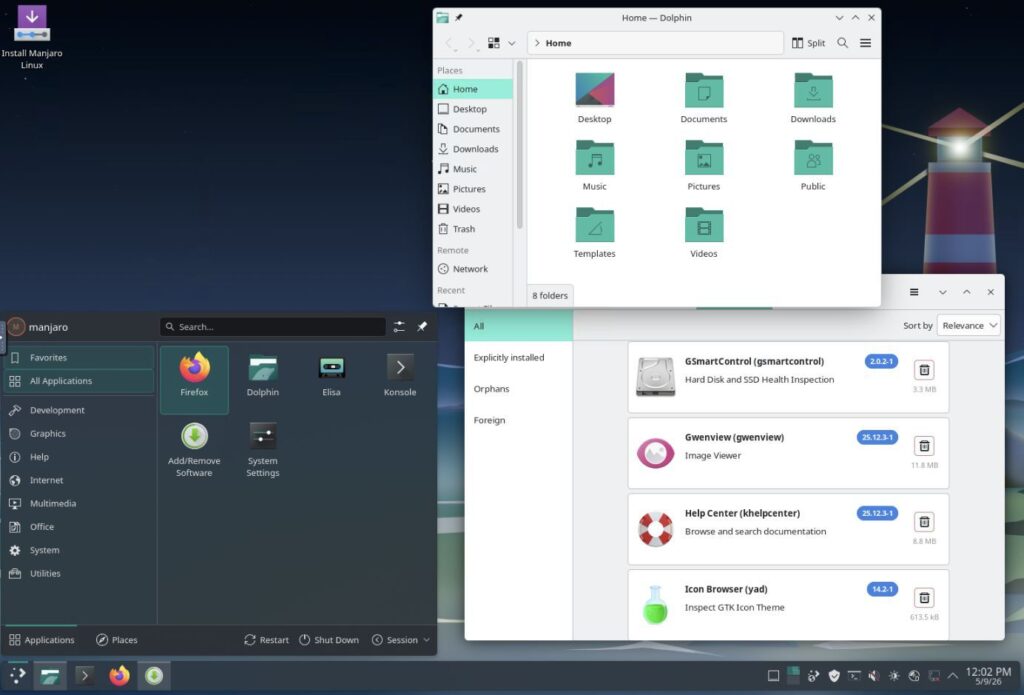
Now, a functional desktop environment is ready for you to try out, like Manjaro Plasma…
…or Garduda…

…or Pop!_OS COSMIC

When the test environment is available, you will also see a small grey pop-out handle. When you click that handle, a small drawer will be visible with three options: Full-screen, Settings, and Disconnect.
Final words
Linux has so much to offer, and that’s exactly what makes it such a joy to use. With all the different distributions and desktop environments available, there’s always something new to discover. But let’s be honest, that huge amount of choice can also feel a bit overwhelming, especially if you’re just getting started with Linux and open‑source software. Traditionally, we’ve relied on USB live environments or virtual machines to try out new distros. Those still work great, of course. But now there’s also DistroSea, a simple, fun, and hassle‑free way to explore a wide range of Linux distributions right from your browser. Whether you’re an experienced distro-hopper, a curious beginner, or someone who just wants to experiment without risking your system, DistroSea is a great tool to have in your Linux toolbox. Enjoy exploring!
Have a look at my latest book on Linux, in Paperback or Kindle format.
For more info on my book click here.
When you want to buy the book click on the image below.
If you appreciate what I do on this website…,